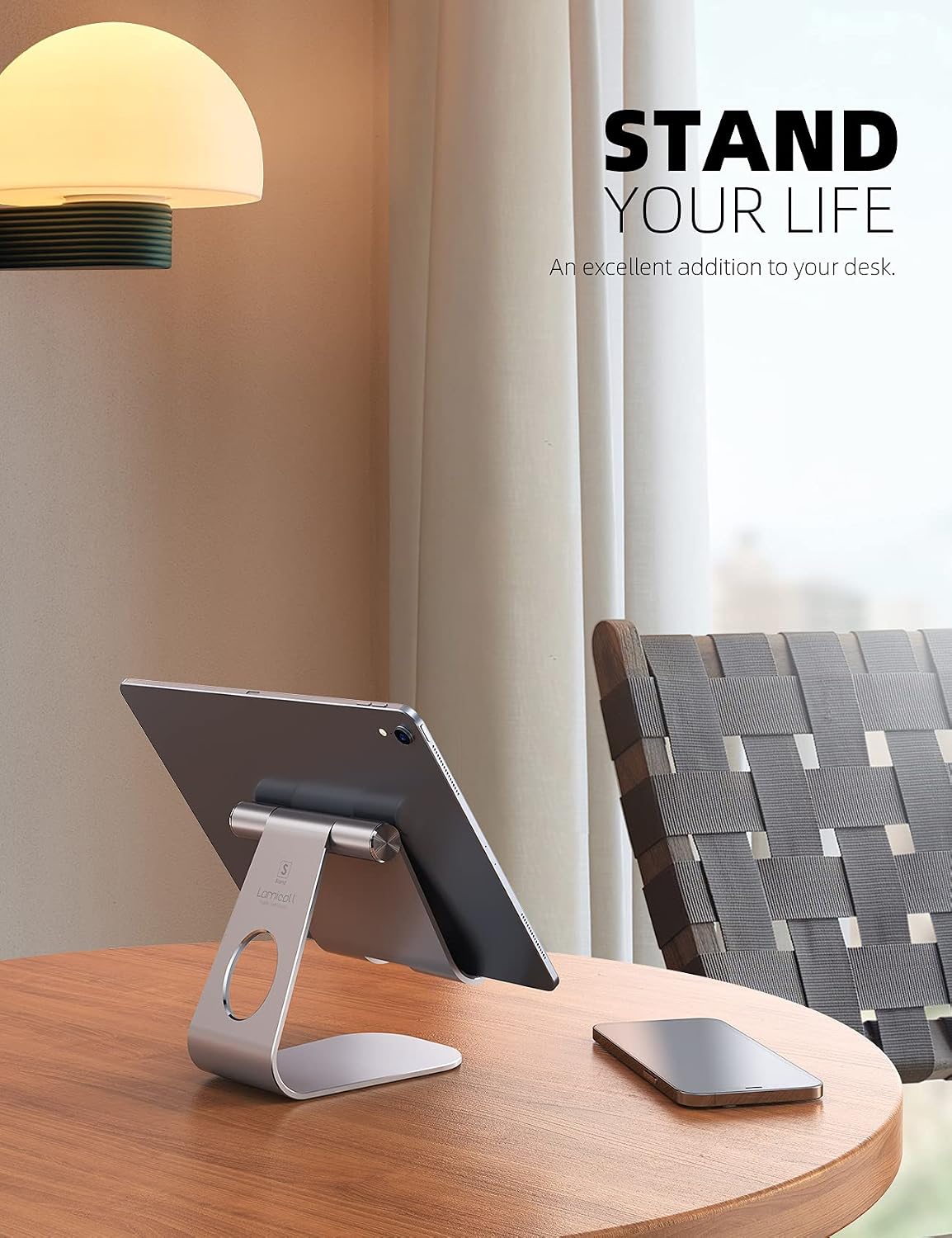
A tablet stand is exactly what it sounds like — a physical mount or holder that props your tablet upright on a desk so you’re not hunching over a flat screen. That sounds simple, but once you’re using an iPad Pro or Surface Pro as a primary creative or productivity surface, the stand you choose shapes your posture, your drawing angle, your cable routing, and whether your keyboard folio fits alongside it. The wrong stand turns a $1,200 tablet into a neck-pain machine. The right one transforms your desk into something close to a Cintiq-style drawing station — without the Cintiq price. This guide covers the full range, from a sub-$10 aluminum tray to a $57 articulating arm, with clear tradeoffs at each tier so you know exactly which one fits your workflow.
Why the “Just Prop It Up” Approach Fails Professionals
The default posture for most people with a new tablet is flat on the desk, maybe tilted at a shallow angle. That works fine for thirty minutes of watching something. It does not work for a four-hour illustration session or a full-day hybrid keyboard-plus-stylus workflow.
The Verge’s ergonomic desk setup guide notes that screens positioned below eye level force the neck into sustained flexion, contributing to the kind of fatigue that compounds across weeks. For tablet users specifically, this matters more than for monitor users because the tablet is both your display and your input surface — you’re looking at it and reaching toward it simultaneously.
The tradeoffs by stand type break down cleanly:
Fixed-angle desktop stands (the $8–$25 range): Cheap, stable, take up minimal desk footprint. The downside is that you pick one angle and live with it. For typing-heavy workflows with a detached keyboard, a steeper angle (60–75°) works well. For stylus drawing, you typically want something shallower (20–45°). A fixed stand forces you to choose.
Adjustable desktop stands (the $25–$45 range): Most have a hinge that lets you dial in angle. Better for mixed workflows. The catch is wobble — cheaper hinges introduce flex that makes stylus input feel imprecise. When reviewers at PCMag evaluate adjustable stands, hinge stability under stylus pressure is one of the first things flagged in negative feedback.
Articulating desk arms (the $45–$80+ range): Mount to the desk edge with a clamp, extend over your workspace, and let you reposition the tablet in three dimensions — height, angle, distance. These are the professional tier. They free your desk surface completely, support landscape-to-portrait rotation, and hold position under active stylus use. The tradeoff is cost, installation, and the fact that some cheap arms drift under the weight of heavier tablets like the iPad Pro 13-inch or Surface Pro 11.
By the Numbers
| Stand Type | Typical Price | Angle Adjustability | Wobble Under Stylus | Best For |
|---|---|---|---|---|
| Fixed aluminum tray (e.g., Lamicall) | $8–$15 | None / 1 preset | Minimal | Streaming, light typing |
| Adjustable hinged stand | $20–$40 | ~15°–75° | Moderate | Mixed typing + drawing |
| Heavy-duty adjustable stand | $35–$55 | ~5°–90° | Low (if quality) | Active stylus, illustration |
| Articulating desk arm | $45–$80 | Full 3D range | Low (if weight-rated) | Pro creative, dual-device setups |
The Budget Tier: Lamicall and Aluminum Tray Stands ($8–$20)
The Lamicall S1 is the reference product in this tier — a folded aluminum tray with a fixed viewing angle around 65°. It has no moving parts, which is also its strongest feature. Owners consistently report that it doesn’t wobble, doesn’t creak, and has held up without issues through years of daily use. Wirecutter’s tablet stand coverage has historically pointed to this style of stand as the default recommendation for anyone who primarily uses their tablet for media consumption or light typing work.
What it can’t do: you can’t flatten it for drawing, and the fixed angle means it’s genuinely uncomfortable for extended stylus sessions. The dock channel is narrow enough to block most keyboard folio base connectors, so if you’re using an iPad with a Magic Keyboard or a Samsung DeX dock setup, you’ll need to remove the folio before dropping the tablet into the stand. That’s a deal-breaker for mixed-workflow users.
The right buyer: Someone who docks their iPad or Fire HD at a dedicated streaming or recipe-reference station and doesn’t move it much. At $8–$12 for a quality aluminum version, the value is undeniable for that narrow use case.
The wrong buyer: Anyone doing illustration work or switching regularly between typing and drawing. The fixed angle and lack of drawing-tilt support makes this the wrong tool.
The Mid-Range: Adjustable Hinged Stands ($25–$45)
This is where most intermediate setups live, and where the spec variance matters most. The core question in this tier is hinge quality, because the whole value proposition is that you can change angles — and a hinge that drifts under 1.5 pounds of iPad Pro defeats the purpose.
Creative Bloq’s roundup of iPad stands for artists specifically calls out hinge locking mechanism as the differentiating factor between usable and frustrating in this price range. Stands with a knob-lock or ratchet hinge hold their position; stands with a simple friction hinge tend to drift over time, especially with heavier tablets.
The Samsung Galaxy Tab S10 Ultra — at roughly 732 grams — is heavier than most stands in this tier are designed for. Manufacturers typically rate stands to 1 kg (about 2.2 lbs), and the Tab S10 Ultra sits near that ceiling before you add any case weight. Check the rated load before buying.
For iPad Pro 11-inch users doing mixed Procreate and keyboard work, an adjustable stand in the $30–$40 range that flattens to around 15–20° for drawing and steepens to 70° for typing is genuinely capable. The Apple Pencil Pro works at these angles without complaint — the issue is never the stylus, it’s whether the stand vibrates when you apply pressure during detailed linework.
The right buyer: Students or creatives doing moderate illustration alongside regular document work, using a tablet in the 400–650g range.
The tradeoff to name explicitly: If your tablet wears a keyboard folio (Magic Keyboard Folio, Samsung Book Cover Keyboard), most mid-range hinged stands aren’t designed to accommodate that added bulk and weight at low angles. You’ll likely be removing the folio for drawing sessions — which is probably fine but worth knowing ahead of time.
The Professional Tier: Articulating Arms ($45–$80)
An articulating arm is a full desk mount — it clamps to the edge of your desk and extends a jointed arm over your workspace. Your tablet clips into a VESA-compatible mount head (VESA is a standard screw-hole pattern on the back of the mount, 75×75mm or 100×100mm, widely used in monitor mounting). The result is a tablet that floats over your desk at whatever height, angle, and distance you prefer, with zero footprint on the desk surface itself.
TechRadar’s 2025 tablet stand guide highlights articulating arms as the choice for users who regularly switch between landscape viewing, portrait reading, and low-angle drawing — because repositioning takes seconds rather than requiring you to wrestle a hinge.
For Surface Pro 11 users specifically, this tier deserves serious attention. The Surface Pro 11 with its built-in kickstand is already reasonably self-supporting, but the kickstand only works on a flat surface and locks you into a fairly upright angle. An articulating arm lets you tilt the Surface Pro into a near-flat drawing orientation, hold it there stably, and use the Surface Slim Pen 2 without the device rocking. Enterprise users deploying Surface Pro fleets for field workers won’t care much about this — but creative professionals treating the Surface Pro as a primary illustration device will.
The critical spec to check: weight capacity and arm length. Cheaper arms in the $45–$55 range are typically rated to 1–1.5 kg and have shorter reach. The iPad Pro 13-inch M4 with a case can push past 800g; the Surface Pro 11 in full configuration with attached Slim Pen is heavier still. An arm that’s marginally rated will drift over time as the tension springs wear. Reviewers at PCMag consistently note that arms rated to 2 kg with a 360° rotating mount head are the minimum spec for reliable use with pro-tier tablets.
The right buyer: Illustrators, architects, or any professional using a tablet as their primary drawing surface for extended daily sessions. Also the right choice for dual-tablet desk setups — one arm per device, full independent positioning.
The tradeoff: Installation takes ten minutes and requires a desk edge thick enough for the clamp (most are rated for 2–8 cm of desk thickness; glass-top desks are not compatible). Arms also introduce one vulnerability: cable management. Your charging cable and any USB-C accessories now have to route along the arm, which means you need cables long enough to accommodate full arm extension — typically 1.5–2 meters.
How to Match Stand Tier to Your Actual Workflow
Here’s the decision frame, stated plainly:
If your primary use is media consumption, reading, or light keyboard work — and you’re not doing stylus illustration — the Lamicall-style fixed stand at $8–$12 does the job without thinking about it. Spend the money elsewhere.
If you do a mix of typing and drawing, primarily on an iPad in the 400–650g range — an adjustable hinged stand with a locking hinge in the $30–$45 range is your tier. Confirm the rated weight, confirm it flattens below 25° for drawing, and confirm it won’t fight your keyboard folio.
If you’re running a pro workflow on an iPad Pro M4, Surface Pro 11, or Samsung Galaxy Tab S10 Ultra — and illustration, design, or architecture work is in the picture — an articulating arm rated to 2 kg is worth the $55–$80. It’s the only option that genuinely supports all three orientations (upright viewing, angled typing, near-flat drawing) without compromise, and it frees your entire desk surface in the process.
One final note on Apple Pencil compatibility that affects this decision: the Apple Pencil Pro requires an iPad Pro M4, iPad Air M2/M3, or iPad mini 7th gen. If you’re on an older iPad, verify your Pencil model before optimizing your stand angle for illustration — the right stand for a heavy Procreate workflow makes more sense to invest in if you’ve already confirmed you have a Pencil that supports pressure sensitivity and tilt on your specific device. Apple’s support documentation on Apple Pencil compatibility is the definitive reference here; the compatibility matrix shifts with every hardware generation.
The stands themselves are commodity-adjacent. The workflow they enable is not.