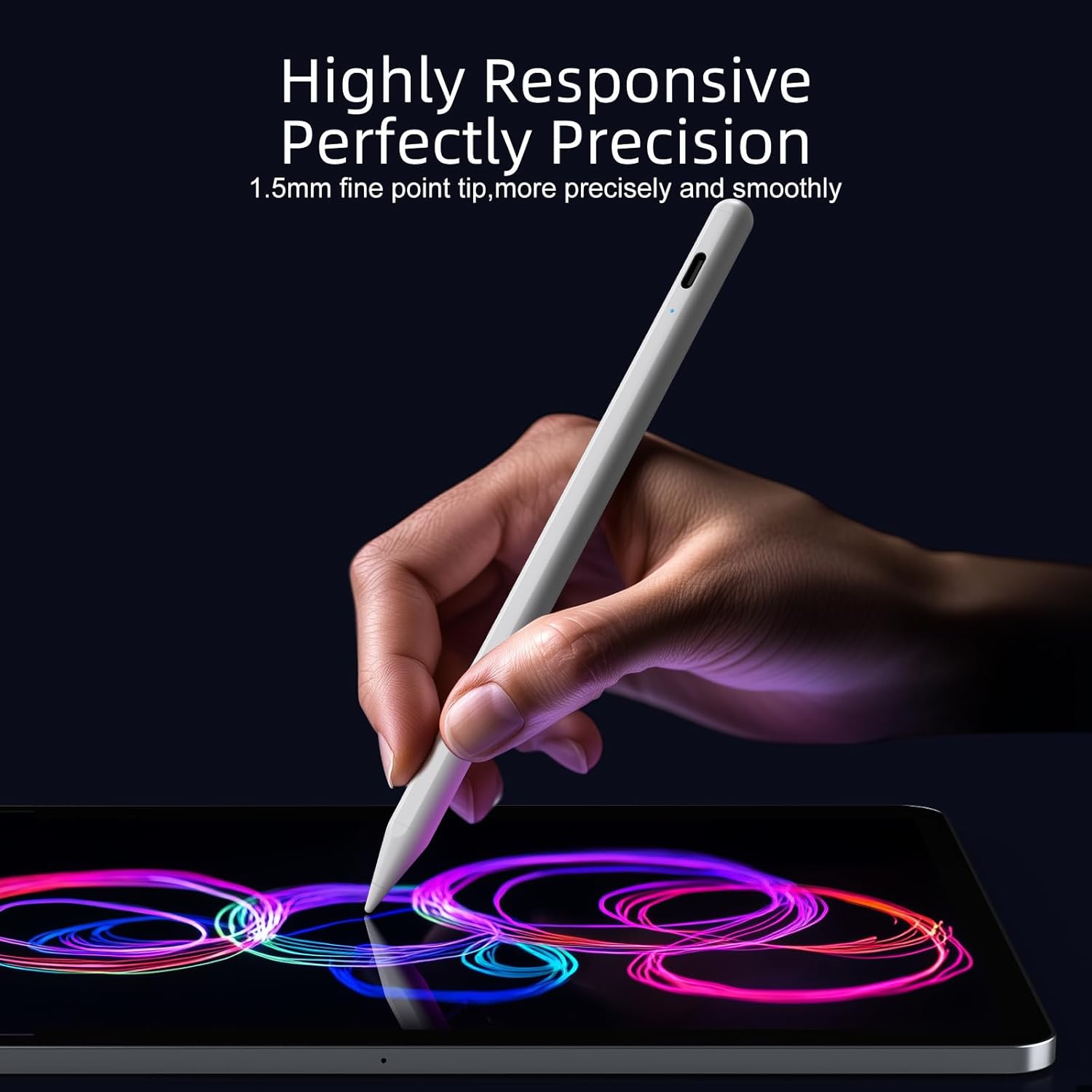
If you’ve ever added an Apple Pencil to your cart only to realize — after opening the box — that it doesn’t actually pair with your iPad, you’re not alone. Apple makes four distinct Pencil models as of 2025, and they are not cross-compatible. The Pencil is a stylus: a pressure-sensitive pen that attaches magnetically or via cable and lets you draw, annotate, or write directly on the screen. The iPad is the tablet it connects to. The problem is that Apple’s product lineup evolved in overlapping generations, and the connector type (Lightning vs. USB-C), the attachment method (magnetic vs. physical plug), and the feature set all vary by both Pencil and iPad model. Get the pairing wrong and you have a very expensive pen that does nothing. This guide maps every current iPad to its correct Pencil, names the tradeoffs explicitly, and ends with a clear decision rule so you can stop second-guessing and buy.
The Four Apple Pencils, Explained in Plain Terms
Before the matrix, let’s lock in what you’re actually choosing between.
Apple Pencil (1st generation) — Released in 2015 and still sold new. Charges via a Lightning connector hidden under a cap on its end. Pairs magnetically only for recognition, not charging. Supports pressure sensitivity and tilt. Does not support double-tap gestures or barrel roll. As of 2025, Apple’s official pricing sits at $99.
Apple Pencil (2nd generation) — Released in 2018. Charges wirelessly by snapping magnetically to the side of compatible iPads. Adds double-tap to switch tools. Supports pressure, tilt, but not barrel roll. Currently $129 from Apple.
Apple Pencil (USB-C) — Released in late 2023 as the entry-level modern option. Charges via USB-C (plug directly into the iPad’s port). No double-tap, no pressure sensitivity. Designed for basic annotation and note-taking, not illustration. Currently $79 — the cheapest Pencil in the lineup.
Apple Pencil Pro — Released May 2024 alongside the M4 iPad Pro. Charges magnetically (USB-C iPads), adds barrel roll (rotate the pen in your fingers and the virtual brush head rotates too), haptic feedback, and a squeeze gesture. The most capable Pencil Apple has made. Currently $129, matching the 2nd gen on price.
Per Apple Inc.’s ‘Compare Apple Pencil models’ support document, the key differentiators are attachment/charge method, pressure sensitivity, and gesture support — not just generation number. That document is your ground truth; bookmark it.
The Compatibility Matrix: Every Current iPad, Every Pencil
Here’s where most guides bury the lead. The answer isn’t “buy the newest Pencil” — it’s “buy the Pencil that actually attaches to your iPad.”
By the Numbers
| iPad Model | 1st Gen Pencil | 2nd Gen Pencil | USB-C Pencil | Pencil Pro |
|---|---|---|---|---|
| iPad Pro M4 (2024) | ✗ | ✗ | ✗ | ✓ only |
| iPad Air M2 (2024) | ✗ | ✗ | ✓ | ✓ |
| iPad (10th gen, 2022) | ✗ (adapter req.) | ✗ | ✓ | ✗ |
| iPad mini (6th gen, 2021) | ✗ | ✓ | ✗ | ✗ |
| iPad mini (7th gen, 2024) | ✗ | ✗ | ✓ | ✓ |
| iPad (9th gen, 2021) | ✓ only | ✗ | ✗ | ✗ |
| iPad Pro M2 (2022) | ✗ | ✓ | ✗ | ✗ |
Source: Apple Inc. ‘Compare Apple Pencil models’ support document, cross-referenced against per-device tech specs pages. Correct as of May 2026.
A few things jump out from that table that are worth unpacking.
The iPad Pro M4 is Pencil Pro exclusive. This is the most common “gotcha” in 2025 purchases. If you bought an M4 iPad Pro thinking you’d reuse your 2nd gen Pencil from an older Pro — it won’t attach, won’t charge, won’t pair. Ars Technica’s M4 iPad Pro review flagged this as a meaningful ecosystem forcing function: Apple is pushing the entire Pro line toward the Pencil Pro and, effectively, requiring buyers to budget an additional $129 at purchase. If you’re evaluating an M4 Pro for illustration work, factor that in upfront.
The 10th gen iPad is the weird middle child. Apple transitioned the base iPad to USB-C with the 10th generation but didn’t redesign the body to support magnetic Pencil attachment for the 2nd gen. The result: the 1st gen Pencil technically works via a USB-C-to-Lightning adapter (sold separately, around $9), but that adapter arrangement is ungainly and the 1st gen doesn’t charge magnetically anyway. The cleaner answer is the USB-C Pencil — but that model lacks pressure sensitivity, which matters if you’re doing anything beyond PDF annotation. Reviewers at The Verge noted in their USB-C Pencil review that the pressure-sensitivity omission is a real limitation for anyone doing illustration, even casual work.
The iPad mini (6th gen) is a 2nd gen Pencil island. If you’re still running a 6th gen mini, the 2nd gen Pencil is your only option — and it’s actually a good one for note-taking and light sketching given the mini’s portability. But you’re locked out of Pencil Pro features. Plan accordingly if you’re deciding between refreshing the mini vs. upgrading to a 7th gen.
Feature Tradeoffs: When the “Right” Pencil Isn’t Enough
Compatibility is table stakes. The sharper question for practitioners is: does the compatible Pencil actually serve your workflow?
Pressure Sensitivity Is Non-Negotiable for Illustration
The USB-C Pencil has no pressure sensitivity — Apple confirmed this in its spec documentation at launch. In Procreate, pressure sensitivity is what makes a light stroke produce a thin line and a heavy stroke produce a thick one. Without it, every stroke is the same width. CreativeBloq’s roundup of the best Apple Pencils for artists in 2025 is blunt about this: the USB-C Pencil is a note-taking tool, not a drawing tool. If your use case is Procreate, Affinity Designer, or Clip Studio Paint, the USB-C Pencil is a false economy even at $79.
The practical implication: if you’re on a 10th gen iPad and doing any illustration, you’re in an uncomfortable position. Your only pressure-sensitive option officially requires an adapter arrangement (1st gen + adapter), or you upgrade to an iPad Air M2 or later, which unlocks the Pencil Pro.
Barrel Roll Changes the Illustration Experience
The Pencil Pro’s barrel roll feature — rotate the pen shaft and the brush orientation rotates in-app — is genuinely novel for calligraphy brushes, flat-edged brushes, and textured media simulation. PCMag’s Pencil Pro review described it as something that “sounds like a gimmick until you use it with the right brush in Procreate.” Per 9to5Mac’s Pencil Pro coverage, Procreate added barrel roll support in version 5.3.7, and Affinity Designer’s iOS build added it in a subsequent update. If you work heavily with brush textures or calligraphy, barrel roll is a real differentiator — not a checkbox.
The caveat: barrel roll only exists on the Pencil Pro, which is only compatible with M2 iPad Pro and later, iPad Air M2 and later, and iPad mini 7th gen. If your iPad doesn’t support Pencil Pro, barrel roll isn’t available to you at any price.
Double-Tap Is a Workflow Shortcut, Not Just a Nice-to-Have
The 2nd gen Pencil’s double-tap gesture lets you toggle between tool and eraser (or configure a custom switch) without lifting your hand to the toolbar. Artists working on extended illustration sessions — particularly on an older iPad Pro M2 with a 2nd gen Pencil — consistently describe this as reducing interruptions to flow state. If you’re evaluating a used or refurbished iPad Pro M1 or M2 as a cost-conscious entry into pro illustration, the 2nd gen Pencil compatibility is a genuine argument for those platforms over the 10th gen base iPad.
The Second-Hand and Refurbished Trap
One scenario that trips up intermediate buyers: purchasing a used iPad without verifying the generation precisely enough. The difference between an iPad Pro 11-inch (3rd gen, M1) and an iPad Pro 11-inch (4th gen, M2) is a single spec-sheet line — but the 3rd gen uses a 2nd gen Pencil and the 4th gen uses a 2nd gen Pencil, while the M4 uses only the Pencil Pro. Buying a used “iPad Pro 11-inch” without confirming the chip generation could mean purchasing a Pencil Pro that won’t pair.
Apple’s support document lists compatible iPads by name and generation for each Pencil — use it as a checklist when evaluating any second-hand purchase. If the seller can’t confirm the exact model identifier (findable in Settings > General > About), treat that as a red flag.
Decision Rules: If X, Then Y
If you’re at a decision point right now, here’s the framework:
If you’re buying an iPad Pro M4 for professional illustration: Budget the Pencil Pro into the purchase. There is no alternative. The $129 is a required accessory, not optional. The barrel roll and haptic feedback are worth it at that price tier.
If you’re on an iPad Air M2 or iPad mini 7th gen and doing serious illustration: Buy the Pencil Pro. You get pressure sensitivity, barrel roll, and the squeeze gesture. It’s the same price as the 2nd gen and meaningfully more capable.
If you’re on a 10th gen base iPad and primarily annotating PDFs or signing documents: The USB-C Pencil at $79 is the right call. Don’t pay for pressure sensitivity you won’t use.
If you’re on a 10th gen base iPad and want to draw: Honestly — consider upgrading to an iPad Air M2 rather than fighting the adapter workaround. The Air M2 unlocks the Pencil Pro and is a meaningfully better illustration platform. The math on a refurbished Air M2 plus Pencil Pro often beats a new 10th gen plus awkward 1st gen adapter setup in total value.
If you’re on an iPad mini 6th gen: The 2nd gen Pencil is your ceiling. It’s capable for note-taking and light sketching. If barrel roll or squeeze matters for your workflow, that’s the signal to evaluate a mini 7th gen refresh.
If you’re evaluating a used iPad Pro (pre-M4): Confirm the chip generation before buying any Pencil. M1/M2 Pro models use the 2nd gen Pencil. M4 requires the Pencil Pro. The resale price difference between generations isn’t always large, but the Pencil compatibility difference is absolute.
The Apple Pencil lineup looks simple from a distance — four models, straightforward lineup. Up close, the compatibility constraints are tight enough that getting it wrong is an easy $79–$129 mistake. The matrix above doesn’t change often, but it does change with each new iPad generation. Apple Inc.’s official comparison document is updated with each hardware release; that’s the source to recheck whenever a new iPad ships.